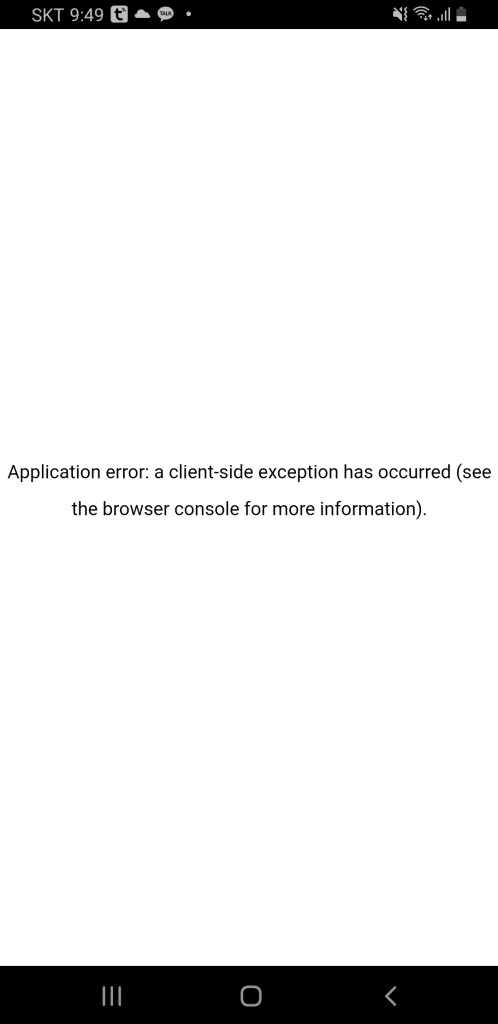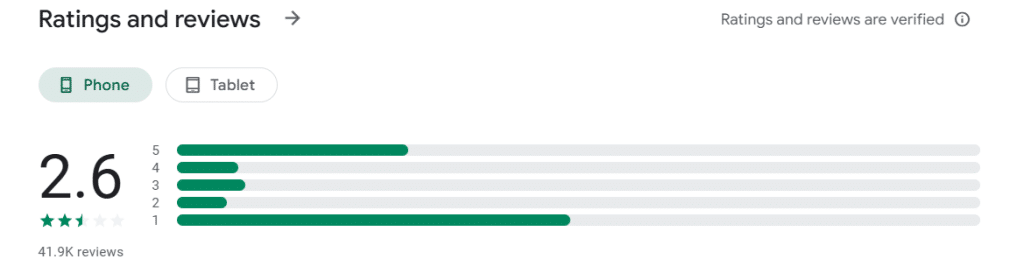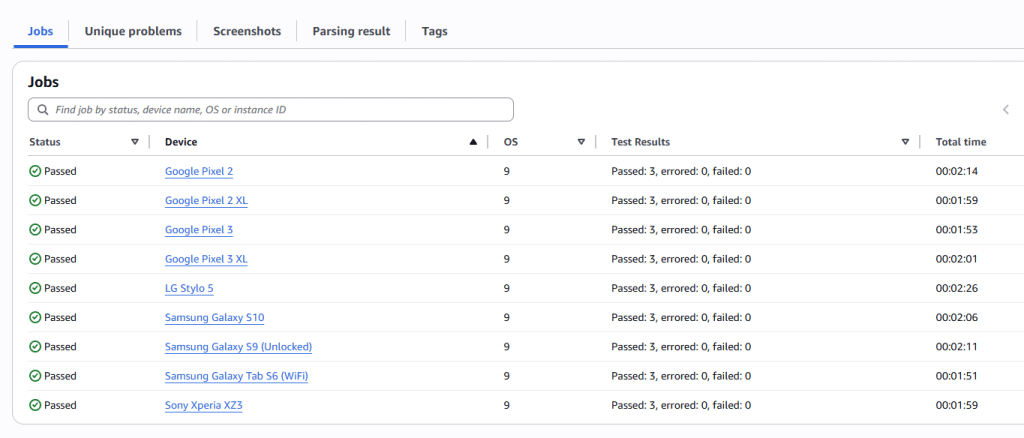
ShortCha 광고 자동화 봇 만들기: YOLO와 LLM으로..

최근 ShortCha 광고가 많이 보이길래 들어가 보았습니다.

1분 내외의 짧은 영상이 30~60편 정도 올라와 있더라고요. 짧게 시간 날 때 보기 딱 좋은 구성인데, 구독료가 엄청나더군요.

구독 가격을 보니, 한 주에 2만원…..

다른 OTT 서비스는 이미 월 1~2만원으로 구독하고 있어서, 이 가격까지 추가로 부담하긴 어렵더라구요. 그래서 어쩔 수 없이 광고 보고 무료로 사용하는 쪽을 선택했습니다.

ShortCha는 ‘젤리’라는 포인트로 에피소드를 볼 수 있는데, 광고를 보면 젤리를 모을 수 있어요. 그런데 여기서 문제가 있었습니다. 1분짜리 짧은 에피소드를 보려면 3~4분짜리 광고를 봐야 하는 거죠. (짧은 광고도 있지만, 계속 광고를 보다 보면 긴 광고가 보이는 시스템인것 같습니다. ) 이건 ROI(Return On Investment)가..

그래서 . “자동화 봇을 만들어볼까?”

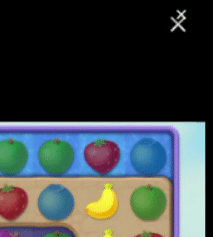
처음에는 광고의 X버튼을 직접 클릭하려고 했어요. element로 되어 있으면 xpath로 찾을 수 있지만, 영상에 임베디드된 경우도 있더라고요. 그래서 다른 방법을 찾아야 했습니다. 화면을 캡처해서 X버튼을 찾는 방식을 고민하게 되었죠.

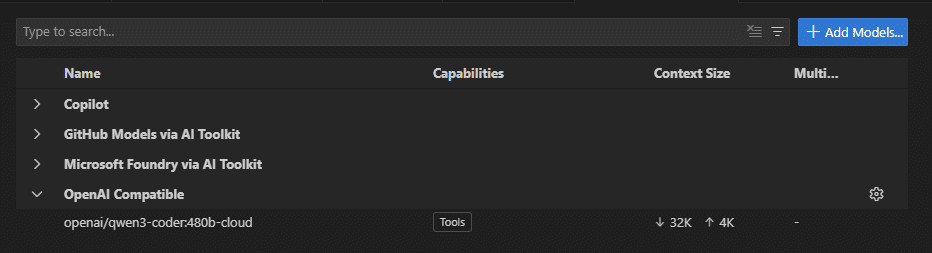
“누군가 이미 이런 AI 모델을 만들었을 텐데?” 하고 찾아봤지만, 아쉽게도 찾을 수 없었습니다. 그래서 직접 YOLO를 이용해서 구현하기로 했어요. 처음에는 class 분류 모델을 사용했는데, 닫기 버튼의 위치가 계속 변경되었습니다. 그래서 최종적으로 detection 모델로 변경했습니다.

MODEL_PATH = "best.pt"
model = YOLO(MODEL_PATH)

def yolo_classify(crop_img: Image.Image, side_offset: int) -> Optional[Tuple[str, float, Tuple[int, int, int, int], int]]:
    """Run YOLO on a PIL crop; return a list of (cls_name, conf, (x1,y1,x2,y2), side_offset) for all detections."""
    results = model.predict(source=crop_img, conf=PRED_CONF, save=False, verbose=False)
    detections = []
    for r in results:
        for box in r.boxes:
            cls_id = int(box.cls[0])
            conf = float(box.conf[0])
            x1, y1, x2, y2 = [int(v) for v in box.xyxy[0].tolist()]
            detections.append((model.names[cls_id], conf, (x1, y1, x2, y2), side_offset))
    return detections if detections else None

def _crop_square(img: Image.Image, where: str, ratio: float) -> Tuple[Image.Image, int, int]:
    """Return (crop, x_offset, y_offset) for 'rt' or 'lt' square crops."""
    w, h = img.size
    side = int(min(w, h) * ratio)
    if where == "rt":
        crop = img.crop((w - side, 0, w, side))
        return crop, w - side, 0
    elif where == "lt":
        crop = img.crop((0, 0, side, side))
        return crop, 0, 0
    else:
        raise ValueError("where must be 'rt' or 'lt'")

def detect_and_click_corner(d: u2.Device, where: str = "rt") -> Optional[Tuple[int, int, float]]:
    """
    Crop corner square (right-top or left-top), run YOLO, map to screen coords, click center.
    Returns (cx, cy, conf) or None if no detection.
    """
    img = d.screenshot(format="pillow")
    crop, x_off, y_off = _crop_square(img, where, SCREEN_CROP_RATIO)
    results = yolo_classify(crop, x_off)
    if not results:
        return None
    for class_name, conf, (x1, y1, x2, y2), x_offset in results:
        if class_name in ("xbutton", "arrow"):
            cx = int((x1 + x2) // 2) + x_offset
            cy = int((y1 + y2) // 2) + y_off
            d.click(cx, cy)
            return (class_name, cx, cy, conf)
    return None

화면 캡쳐 및 YOLO 모델 (best.pt는 YOLO weight 파일입니다)

이렇게 해서 매일 자동으로 젤리를 모으고, 보고 있는 시리즈는 미리 광고를 다 처리해두면 나중에 광고 없이 한번에 몰아볼 수 있게 했어요.

하지만 YOLO 모델이 항상 완벽한 건 아니었어요. 가끔 닫기 버튼을 찾지 못하는 경우가 있었습니다. 이럴 때를 대비해 fallback 전략을 추가했습니다. YOLO가 실패하면 LLM에게 화면 이미지를 보내서 버튼의 좌표를 불러오는 방식이죠. 이때 캡쳐한 이미지는 나중에 학습 데이터로 활용했습니다.

LLM Query 및 응답 – 예시

응답:
{
  "x": 1040,
  "y": 54,
  "reason": "There is an advertisement overlay on the screen. The 'X' close button is clearly visible at the top-right corner. Clicking at (1040, 54) will close the ad and allow the user to return to the app content."
}

코드

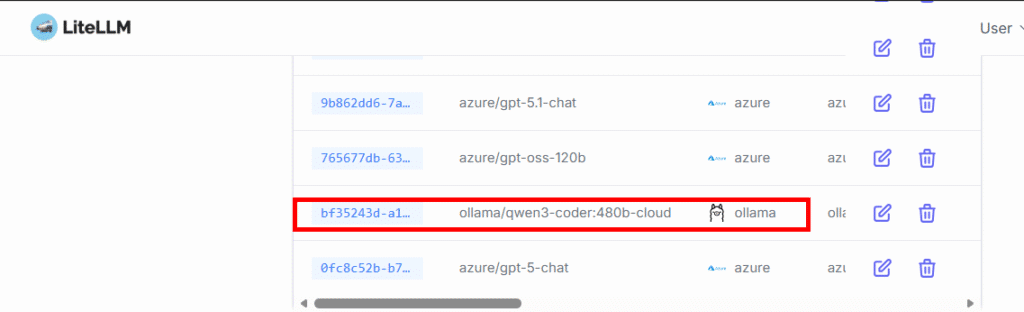
def ask_and_click_by_llm(d, api_url="http://192.168.10.100:4000/v1/chat/completions", api_key="sk-"):
    """
    1. Capture the current screen as an image and get current XML.
    2. Send the screenshot and XML to the LLM endpoint (chat completion).
    3. Receive the recommended click coordinates and reason.
    4. Click the received coordinates.
    5. Save the image, coordinates, and reason to files.
    """
    import datetime
    import json
    import os
    time.sleep(3)
    # 1. Capture screenshot
    img = d.screenshot(format="pillow")
    img_bytes = io.BytesIO()
    img.save(img_bytes, format="PNG")
    img_bytes.seek(0)
    img_b64 = base64.b64encode(img_bytes.read()).decode("utf-8")
    # 2. Get current XML dump as string
    xml_str = d.dump_hierarchy(compressed=True)
    # 3. Prepare OpenAI/LiteLLM chat completion payload
    payload = {
        "model": "azure/gpt-4.1",
        "messages": [
            {
                "role": "system",
                "content": (
                    "You are a UI automation assistant. "
                    "Given a screenshot and XML, suggest the best click position and explain why. "
                    "If the screen contains an advertisement overlay, prioritize clicking a '>>' or 'X' button to skip/close it. "
                    "Respond in JSON: {\"x\": int, \"y\": int, \"reason\": str}"
                )
            },
            {
                "role": "user",
                "content": [
                    {"type": "text", "text": "Here is the current screen and its XML. Where should I click and why?"},
                    {"type": "image_url", "image_url": f"data:image/png;base64,{img_b64}"},
                    {"type": "text", "text": xml_str}
                ]
            }
        ]
    }
    headers = {}
    if api_key:
        headers["Authorization"] = f"Bearer {api_key}"
    try:
        resp = requests.post(api_url, json=payload, headers=headers, timeout=60)
        resp.raise_for_status()
        # Try to extract JSON from LLM response
        content = resp.json()["choices"][0]["message"]["content"]
        # If LLM returns code block, extract JSON part
        if "```json" in content:
            content = content.split("```json")[1].split("```")[0].strip()
        result = json.loads(content)
        x, y = result.get("x"), result.get("y")
        reason = result.get("reason", "")
        print(f"LLM response: click at ({x},{y}), reason: {reason}")
        # 5. Save image, coordinates, and reason to files
        now = datetime.datetime.now().strftime("%Y%m%d_%H%M%S")
        save_dir = "llm_click_log"
        os.makedirs(save_dir, exist_ok=True)
        img_path = os.path.join(save_dir, f"screen_{now}.png")
        info_path = os.path.join(save_dir, f"info_{now}.json")
        xml_path =  os.path.join(save_dir, f"xml_{now}.xml")
        img.save(img_path)
        with open(info_path, "w", encoding="utf-8") as f:
            json.dump({"x": x, "y": y, "reason": reason}, f, ensure_ascii=False, indent=2)
        with open(xml_path, "w", encoding="utf-8") as f:
            f.write(xml_str)
        print(f"Saved screenshot to {img_path}")
        print(f"Saved click info to {info_path}")
        if x is not None and y is not None:
            d.click(int(x), int(y))
            print(f"Clicked at: ({x},{y})")
            return (x, y, reason)
        else:
            print("No coordinates received from LLM.")
            return None
    except Exception as e:
        print(f"LLM API request failed: {e}")
        return None

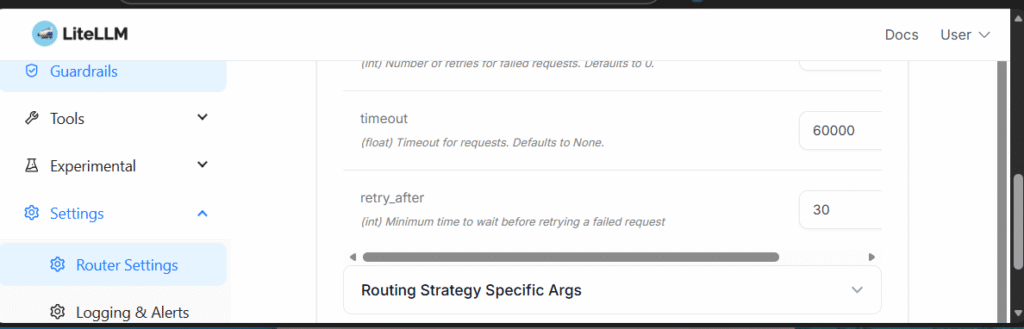
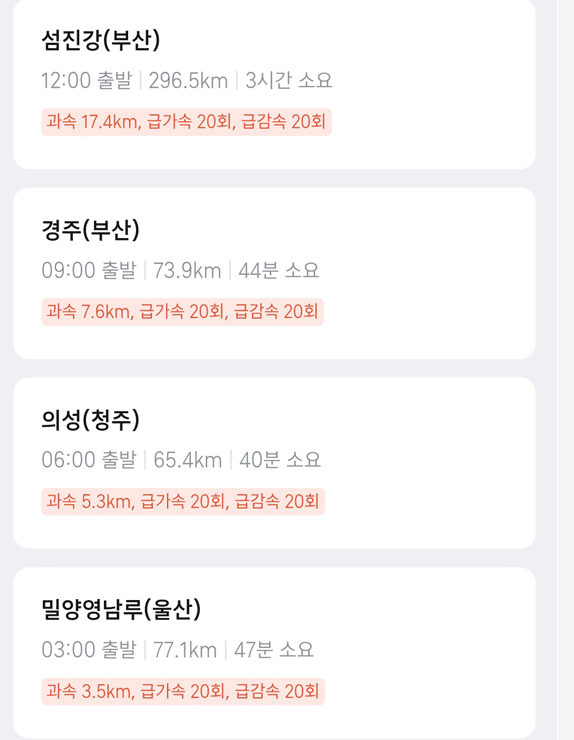
이 과정을 좀 더 체계적으로 관리하고 싶었어요. 그래서 Prefect를 설치해서 CI/CD 파이프라인을 구축했습니다. 단순한 이미지 학습인데도 CPU로는 60분이나 걸리더라고요. 그래서 NAS의 GPU를 활용하기로 했습니다. 고성능은 아니지만… 없는 것보다는 훨씬 나으니까요.
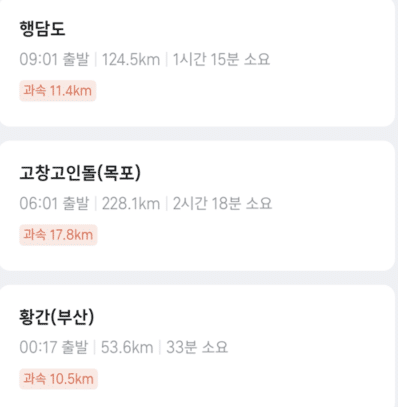
위 코드를 보면 알겠지만, 코드는 대부분 CoPilot 으로 작성했습니다. 실제로 직접 코딩하는 시간보다 모델을 학습 시키는 시간이 월씬 많이 걸렸죠.

봇과 MLOps의 전체 프로세스를 정리하면 다음과 같습니다:

  1. ShortCha에서 광고 보고 젤리 획득하기
  2. 보던 시리즈의 새 에피소드 미리 확보하기 (광고 보면서)
  3. YOLO 모델로 화면 캡처 후 닫기 버튼 탐지 및 자동 클릭
  4. YOLO가 버튼을 찾지 못하면 LLM에게 화면 이미지를 보내 좌표 확보
  5. LLM이 처리한 이미지와 데이터를 저장 (학습 데이터로 활용)
  6. 확보한 좌표를 클릭하여 미션 완료
  7. 저장된 이미지 확인 후 학습 데이터 보정 (여기는 사람이…)

  8. Prefect로 모델 학습 후 YOLO 모델 업데이트

이렇게 해서 YOLO와 LLM을 조합한 자동화 시스템을 만들었고, Prefect로 MLOps 파이프라인까지 구축하니 그럴듯하게 돌아가더라고요. 실패하면 LLM이 보완하고, 그 데이터로 다시 학습하는 구조입니다.

Prefect Dashboard

열심히 돌고 있는 NAS – GPU

CPU로 돌릴 때. ㅠㅠ

베트남 주식 수수료

2025년 베트남 주식 수수료 완전 비교 가이드

미국만 하다가 이번엔 중국과 베트남으로 확장을 했다.

베트남은 다른나라와 다르게 2가지 이슈가 있어서 기록으로 남긴다. 이 글은 2025년 11월 기준 으로 업데이트 했습니다.

📊 증권사별 수수료 비교표

증권사온라인 수수료오프라인 수수료최소수수료최소 거래단위공식 출처
KB증권0.4%0.5%VND 500,000
(₩28,000)
100주KB증권
미래에셋증권0.4%0.5%VND 700,000
(₩39,000)
100주미래에셋증권
삼성증권0.4%0.5%VND 400,000
(₩22,000)
100주삼성증권
나무증권
(NH투자증권)
0.4%0.5%VND 600,000
(₩33,000)
100주나무증권
한국투자증권추후 공지 예정0.7%VND 800,000
(₩45,000)
100주한국투자증권
유안타증권0.5%0.5%VND 700,000
(₩39,000)
100주유안타증권

💡 추가 사항 증권사 : 매도시 0.1% 증권거래세 별도 부과 되는 경우 있음


⚠️ 베트남 주식 투자 전 필수 체크사항

1. 최소 거래 단위 규정

  • 호치민/하노이 거래소: 100주 단위
  • 단주거래: 1~99주는 별도 주문 (100주와 분리)
  • 매수가 100주인데 왜 단주가 생기나 할수 있는데, 배당을 주식으로 주는 경우 발생.

예시: 114주 보유 → 100주 + 14주로 나눠서 매도해야 함

2. 최소 수수료의 함정

거래 금액이 작을 경우 최소 수수료가 적용됩니다.

예시 (KB증권 기준):

  • VND 10,000,000 (약 ₩560,000) 거래 시
  • 수수료율: VND 40,000 (10,000,000 × 0.4%)
  • 하지만 최소수수료 VND 500,000 적용 → 실제 부담 수수료 약 5%

💡 : 최소수수료를 넘는 금액부터 거래하는 것이 유리합니다.

  • KB증권 기준: 약 VND 125,000,000 (약 ₩700만원) 이상
  • 삼성증권 기준: 약 VND 100,000,000 (약 ₩560만원) 이상

3. 환전 수수료

  • 베트남 동(VND) 환전 필요
  • 대부분 KRW USD → VND 2단계 환전
  • 환전 수수료 약 1~3% 별도 발생

4. 그 외

  • 한국/미국 주식은 증권사 이전이 가능 (타사대체출고)
  • 그러나 베트남 주식은 불가능 (매도후 USD로 환전/이체 후 재 매수)

Migration Guide for Windows VM: From Electic to TrueNAS fangtooth 25.04

Recently, TrueNas Fangtooth 25.04 was release. The VM system has changed compared to the previous version.

A new ‘Instances’ menu has been introduced for managing virtual machines. If you were using Windows 10 with a prrevious version of TrueNas, you will need to create a new VM.

This document outlines the necesary steps.

  1. Import Zvols from the previous version. I prefer cloning over moving for data backup.

2. I’ve also uplaed GParted and the Windows ISO. In my case, I encounted a timeout error while uploading a large ISO file (Windows). If you experience the same issue, i’ll create another post to address it.
Gparted – https://downloads.sourceforge.net/gparted/gparted-live-1.7.0-1-amd64.iso

Windows – https://www.microsoft.com/ko-kr/software-download/windows10

3. Create a NEW VM

  • I’ve added the import windows disk, gparted live iso and enable VNC.

4. Remove unsued paritions and create a new partition. Changed the parition to GPT partition.

You NEED to select the correct disk. I chose it based on the size. This is an important step.

Remove all other partitions excep the main one. In my case, the 78G partion was the windows. I’m not sure what the othere were. The boot partion shoudl be fat32 but in my case, it was NTFS which caused a boot issue.

Try to convert the partitions to GPT. – Click Terminal.
sudo gdisk /dev/diskname (based on right top side information)
w – y . then you can see complete.

Return to GUI gparted – refresh the devices.

Create a partition EFI and fat32 on first area.

Shutdown the device.

5. Resotre the boot area with windows ISO.

insert the windows_iso

Boot windows 10 Setup.

Below is korean. but you can click same button.

Restore the partition.

diskpart
list disk
select disk ? (based on size)
list partition
select partition 1
assign letter=s

bootrec /scanos
bcdboot d:\windows /s S: /f UEFI

DONE!
6. Reboot the device and wait. It may reboot a few times. Eventually, you will see Windows

Virtual Print V2

안녕하세요.

기존에 virtual print는 인쇄 데이터를 그대로 PDF로 저장해 줍니다.
그래서, pdf를 보았을때, ‘글씨’데이터가 그대로 살아 있고,
이것 관련해서 ‘보안’상 이슈가 있을수 있습니다.

그래서 아래와 같이 추가 기능을 넣었습니다.

  • Title 값 참고
  • 그림 형식으로 추가 저장

아래와 같이 두가지 타입 _original 과 _raster 두개가 저장됩니다. original은 기존과 같은 형식이고 raster는 그림으로 변경 된것 입니다.

pdf를 alpdf로 읽어 보면 original은 아래와 같이 글씨가 선택이 됩니다. (즉 글씨는 Text로)

그러나 Raster로 저장된 것은 아래와 같이 ‘이미지’로 저장되어서 OCR을 해야만 합니다. 그만큼 수정등의 보안에 강력합니다. 그리고 일부 사이트에서 가상프린터로 인쇄된 pdf라고 인식되는 경우 이것은 그 부분을 회피할수 있습니다.

기본적인 사용법은 기존글을 참고해주세요.

증권사별 7월 이벤트

현재 KB증권을 이용중이다.. 나는 혜택이 있지만 HTS (PC거래)시만 적용이 되고,
아이들 계좌는 일반 수수료 (0.25%) 이다.

최근에 KB에서 여러 이벤트도 있길래 좀 어떻게 될꺼가 있나 해서 지점과도 통화 했지만 그냥 증권사를 옮기라고 한다. 그래서 몇 곳을 알아 보고 결정을 했다.

중심으로 둔거는 아이들 계좌이다. 지금 현금 2~3만원 주는 곳은 많은데, ‘평생’ 수수료를 주는 곳으로 택했다.

그래서 삼성증권은 평생 수수료. 0.03%(미국) . 일반적으로 0.25%니깐.. 당장 몇만원 안줘도, 좀 거래 하다보면 이벤트 3만원 정도 효과가 있다. 장기적으로 보면 이것만으로도 충분히 이익이다. 그러나 현재 계좌를 옮기면 그걸로 이벤트를 준다. 결론적으로 보면 평생 + 타행 이동의 경우 가장 좋은 효과를 보여 준다.

아래는 미래에셋 이다. 2만원 기본으로 주고, 주식 거래 하면 2~3만원 정도 추가로 받을수 있을것 같다. 그러나 평생은 아니다.

아래는 나무증권(NH 농협)이다. 여기도 몇만원을 준다.

마지막으로 키움이다. 여기는 이벤트가 많다. 여기도 몇만원은 주는것 같다.

증명서 pdf로 출력 하기 – 가상 프린터 virtual printer

물리 프린터로 출력을 해야만 하는 증명서 들이 많습니다.


인터넷 증명발급 테스트 (cak.or.kr)

이렇게 일반적으로 지원 불가 프린터라고 나옵니다. 이 해결방법으로 ‘모두의 프린터’같은 것이 있습니다. 그러나 설치도 해야하고.. 그래서 가상 프린터를 만들어서 이러한 문서들을 pdf로 인쇄 해보려고 합니다.

여기서는

  1. 아래 첨부의 드라이버를 다운 받아서 압축을 풉니다.

2. 수동으로 프린터 추가를 합니다.

3. IP로 추가를 선택 합니다.

4. 주소는 printer.flywithu.com 으로 입력 합니다. device type은 tcp/ip로 합니다.

5. Generic Network Card로 선택하고…

7. Have Disk 로 수동으로 드라이버를 선택 합니다.

8. 위에서 다운 받아서 압축을 푼 위치로 지정합니다.

9. CLX-6200 PS로 선택 합니다.

10. Print a Test 를 합니다.

11. 이제 보안 출력 지원 하는 곳에 가서 프린터를 선택하면 인쇄 가능으로 뜹니다.

12. 아래 주소를 접속하면 나의 IP와 PW, 그리고 파일들 리스트가 보입니다. 나의 IP로 된 파일을 다운 받아서, 압축을 해당 PW로 풀면은 PDF가 있습니다.

Virtual Print

alzip이나 7z으로 압축을 풀면이렇게 나오고, PW는 위 페이지의 5자리를 넣으면 됩니다.

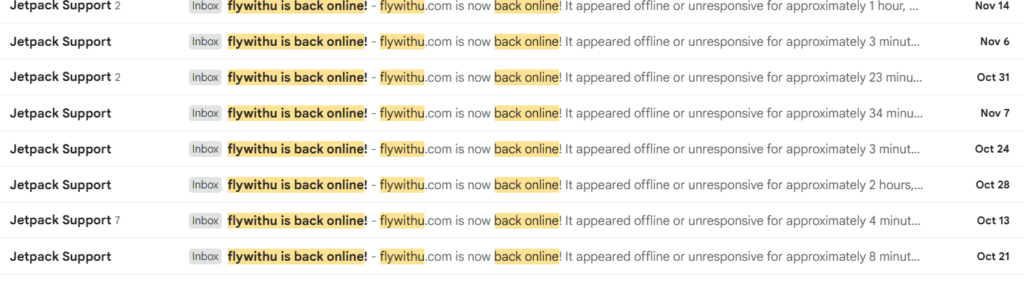
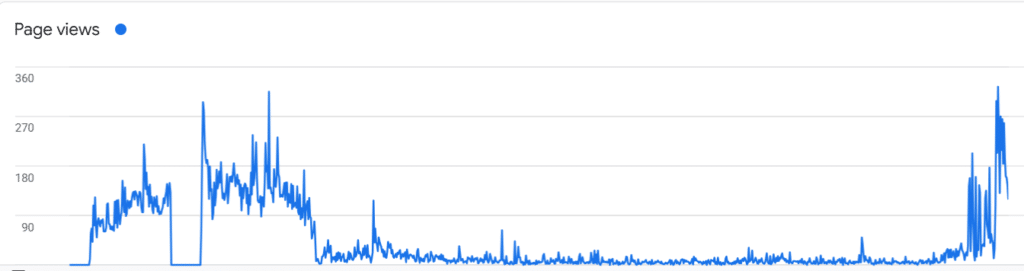
홈페이지 인덱스는 함부로 바꾸는게 아닙니다. 방문자수 복구가 안되는구나.. ㅠㅠ

같은 기간을 비교 한건데, 본 홈페이지 방문자수가 -86% 입니다.

이때 무슨 일이 있었냐 하면, 지금은 홈페이지의 글들이 아래처럼 숫자로 연결되어 있습니다.

https://flywithu.com/archives/7830

이 전에는 archives/홈페이지 이런식으로 글의 주소가 제목이었습니다.

제목으로 google등의 search engine 과 연결되어 있었고, 많은 방문이 이를 통해 이루어 졌는데, 인덱스를 숫자로 바꾸면서 와장창 링크가 다 깨지면서 방문자도 급감 했습니다.

기존 링크가 자동연결되게 해 놓고 바꾸었어야 했는데, 아무생각 없이 진행을 했었네요. 그 이후로 아직 수개월이 지나도록 복구가 안되고 있습니다.

글의 인덱스 링크를 바꾸기 전에 꼭 한번 기존 링크를 어떻게 할것인가 고려가 필요 합니다.

Azure AI computer Vision in Golang: ChatGPT Intergration Guide

English follows Korean

얼마전에 사진 정리 도구를 Piwigo에서 PhotoPrism으로 변경했습니다. Piwigo는 매우 좋은 어플리케이션이지만, PhotoPrism의 현대적인 느낌과 AI를 이용한 사진 분류기능이 매력적입니다. PhotoPrism은 Golang으로 개발되어 있으며, REST API를 통해 다양한 프로그래밍 언어로 활용할 수 있습니다. (Browse Your Life in Pictures – PhotoPrism). 그러나 여러 예시가 Golang이라 그것을 활용해 보았습니다. Golang은 처음이로 ChatGPT를 이용해서 Library와 Sample을 만들었습니다.

AzureAI를 사용해 태그를 추가하고, Piwigo의 사진을 PhotoPrism에 업로드 하는 것이 골이 었고, AzureAI를 사용한 이유는 일정범위(개인용으로 충분한)에서 무료 사용기 가능하다는 점입니다.

  1. Azure AI 서비스 생성
  2. 샘플코드
    • 샘플코드 실행결과
    • 024/05/01 20:19:08 ++++++++++++++++++++++++++++++++++++++++++++++++
      2024/05/01 20:19:08 Download File
      2024/05/01 20:19:09 ++++++++++++++++++++++++++++++++++++++++++++++++
      2024/05/01 20:19:09 Image Tagging
      *적절한 테그 제안

      Tag: outdoor (Confidence: 0.99)
      Tag: building (Confidence: 0.99)
      Tag: sky (Confidence: 0.98)

      2024/05/01 20:19:13 ++++++++++++++++++++++++++++++++++++++++++++++++
      2024/05/01 20:19:13 Image Description
      Description Tag: building
      Description Tag: outdoor
      Caption: an ancient city with many ruins with Colosseum in the background (Confidence: 0.34)
      2024/05/01 20:19:14 ++++++++++++++++++++++++++++++++++++++++++++++++
      2024/05/01 20:19:14 Object Detection
      Object: kitchen appliance (Confidence: 0.50)
      Object: computer keyboard (Confidence: 0.51)
      Object: Laptop (Confidence: 0.85)
      Parent Object: computer (Confidence: 0.85)
      2024/05/01 20:19:15 ++++++++++++++++++++++++++++++++++++++++++++++++
      2024/05/01 20:19:15 Landmark Analysis
      Category: {building_ 0.83203125 0xc0001f79b0}
      *사물인식

      Landmark: Eiffel Tower

      ======================== Brand

      2024/05/01 20:19:16 Analyze - Brands
      *Brand인식

      Brand : [{HP 0.603 {569 586 77 71}}]
      Brand Tag: {person 0.987419068813324}
      Brand Tag: {clothing 0.9757296442985535}
      Brand Tag: {sky 0.9699560403823853}
  • 샘플 이미지 – 이미지의 HP 로고를 인식 합니다.
  • 라이브러리는 여기에(flywithu/azure-golang (github.com)) 있습니다. Code 역시 해당 사이트를 참고해도 되고, 아래를 참고 해도 됩니다.
  • Library 환경 설정
  • go mod init azure-golang
    go mod tidy
    export VISION_KEY="YOURKEY"
    go run
  • 실행 코드
package main

import (
	"github.com/flywithu/azure-golang"
	"fmt"
	"log"
	"os"
	"net/http"
	"io"

)

func main() {
	VISION_ENDPOINT := "https://flywithufreevision.cognitiveservices.azure.com"
	VISION_KEY := os.Getenv("VISION_KEY")

	filePath:="temp.jpg"
	// URLs for image analysis
	landmarkImageURL := "https://raw.githubusercontent.com/Azure-Samples/cognitive-services-sample-data-files/master/ComputerVision/Images/landmark.jpg"
	kitchenImageURL := "https://learn.microsoft.com/en-us/azure/ai-services/computer-vision/images/windows-kitchen.jpg"
	eiffelTowerImageURL := "https://upload.wikimedia.org/wikipedia/commons/thumb/d/d4/Eiffel_Tower_20051010.jpg/1023px-Eiffel_Tower_20051010.jpg"
	redShirtLogoImageURL := "https://publish-p47754-e237306.adobeaemcloud.com/adobe/dynamicmedia/deliver/dm-aid--08fdf594-c963-43c8-b686-d4ba06727971/noticia_madridistas_hp.app.png?preferwebp=true&width=1440"

	client := vision.ComputerVisionClient(VISION_ENDPOINT, VISION_KEY)

	log.Println("++++++++++++++++++++++++++++++++++++++++++++++++")
	log.Println("Download File")
	resp, err := http.Get(landmarkImageURL)
	if err != nil {
		panic(err)
	}
	defer resp.Body.Close()

	out, err := os.Create(filePath)
	if err != nil {
		panic(err)
	}
	defer out.Close()

	_, err = io.Copy(out, resp.Body)
	if err != nil {
		panic(err)
	}


	// Tagging an image
	log.Println("++++++++++++++++++++++++++++++++++++++++++++++++")

	log.Println("Image Tagging")
	tags, err := client.GetImageTags(filePath)
	if err != nil {
		log.Fatalf("Failed to get image tags: %v", err)
	}
	for i, tag := range tags.Tags {
		if i >= 3 { break }
		fmt.Printf("Tag: %s (Confidence: %.2f)\n", tag.Name, tag.Confidence)
	}

	// Describing an image
	log.Println("++++++++++++++++++++++++++++++++++++++++++++++++")

	log.Println("Image Description")
	description, err := client.GetImageDesc(filePath)
	if err != nil {
		log.Fatalf("Failed to get image description: %v", err)
	}
	for i, tag := range description.Description.Tags {
		if i >= 3 { break }
		fmt.Printf("Description Tag: %s\n", tag)
	}
	for i, caption := range description.Description.Captions {
		if i >= 3 { break }
		fmt.Printf("Caption: %s (Confidence: %.2f)\n", caption.Text, caption.Confidence)
	}

	// Object Detection
	log.Println("++++++++++++++++++++++++++++++++++++++++++++++++")
	log.Println("Object Detection")
	objects, err := client.GetImageObject(kitchenImageURL)
	if err != nil {
		log.Fatalf("Failed to detect objects: %v", err)
	}
	for i, obj := range objects.Objects {
		if i >= 3 { break }
		fmt.Printf("Object: %s (Confidence: %.2f)\n", obj.ObjectInfo.ObjectName, obj.ObjectInfo.Confidence)
		if obj.Parent != nil {
			fmt.Printf("Parent Object: %s (Confidence: %.2f)\n", obj.Parent.ObjectName, obj.Parent.Confidence)
		}
	}

	// Analyzing image for landmarks
	log.Println("++++++++++++++++++++++++++++++++++++++++++++++++")

	log.Println("Landmark Analysis")
	landmarks, err := client.GetImageAnalyze(eiffelTowerImageURL)
	if err != nil {
		fmt.Printf("Failed to analyze landmarks: %v", err)
	}
	for i, cat := range landmarks.Categories {
		if i >= 3 { break }
		fmt.Printf("Category: %v\n", cat)
		if cat.Detail != nil && len(cat.Detail.Landmarks) > 0 {
			fmt.Printf("Landmark: %v\n", cat.Detail.Landmarks[0].Name)
		}
	}

	// Analyzing brands
	log.Println("Analyze - Brands")
	brands, err := client.GetImageAnalyze(redShirtLogoImageURL)
	if err != nil {
		fmt.Printf("Failed to analyze brands: %v", err)
	}
	fmt.Printf("Brand : %v \n",brands.Brands)
	for i, tag := range brands.Tags {
		if i >= 3 { break }
		fmt.Printf("Brand Tag: %v \n", tag)
	}
}

I recently switched my photo organization tool from Piwigo to PhotoPrism. While Piwigo is a very good application, I found PhotoPrism’s modern UI and AI-powered photo capabilities appealing. PhotoPrism is developed in Golang and can be utilized with various languages through its REST API. However, since many examples are in Golang, I decided to use that. As it was my first time using Golang, I wrote libraries and samples with ChatGPT guidance.

Adding tags with Azure AI and uploading photos to PhotoPrims was the goal, and the reason for using Azure AI is that it offers free usage, which is sufficient for personal use.

  1. Creating Azure AI Service
  2. Sample code
    • Execution Result
    • 024/05/01 20:19:08 ++++++++++++++++++++++++++++++++++++++++++++++++
      2024/05/01 20:19:08 Download File
      2024/05/01 20:19:09 ++++++++++++++++++++++++++++++++++++++++++++++++
      2024/05/01 20:19:09 Image Tagging
      *
      Suggested Tags
      Tag: outdoor (Confidence: 0.99)
      Tag: building (Confidence: 0.99)
      Tag: sky (Confidence: 0.98)

      2024/05/01 20:19:13 ++++++++++++++++++++++++++++++++++++++++++++++++
      2024/05/01 20:19:13 Image Description
      Description Tag: building
      Description Tag: outdoor
      Caption: an ancient city with many ruins with Colosseum in the background (Confidence: 0.34)
      2024/05/01 20:19:14 ++++++++++++++++++++++++++++++++++++++++++++++++
      2024/05/01 20:19:14 Object Detection
      Object: kitchen appliance (Confidence: 0.50)
      Object: computer keyboard (Confidence: 0.51)
      Object: Laptop (Confidence: 0.85)
      Parent Object: computer (Confidence: 0.85)
      2024/05/01 20:19:15 ++++++++++++++++++++++++++++++++++++++++++++++++
      2024/05/01 20:19:15 Landmark Analysis
      Category: {building_ 0.83203125 0xc0001f79b0}
      *
      Recognized the landmark
      Landmark: Eiffel Tower

      ======================== Brand

      2024/05/01 20:19:16 Analyze - Brands
      *
      Recognized the Brand
      Brand : [{HP 0.603 {569 586 77 71}}]
      Brand Tag: {person 0.987419068813324}
      Brand Tag: {clothing 0.9757296442985535}
      Brand Tag: {sky 0.9699560403823853}
  • Sample Image – Recognized the HP logo in the image.
  • The library and code can be found here(flywithu/azure-golang (github.com) , or refer to the following.
  • Setting the Library environment
  • go mod init azure-golang
    go mod tidy
    export VISION_KEY="YOURKEY"
    go run
  • Golang code
package main

import (
	"github.com/flywithu/azure-golang"
	"fmt"
	"log"
	"os"
	"net/http"
	"io"

)

func main() {
	VISION_ENDPOINT := "https://flywithufreevision.cognitiveservices.azure.com"
	VISION_KEY := os.Getenv("VISION_KEY")

	filePath:="temp.jpg"
	// URLs for image analysis
	landmarkImageURL := "https://raw.githubusercontent.com/Azure-Samples/cognitive-services-sample-data-files/master/ComputerVision/Images/landmark.jpg"
	kitchenImageURL := "https://learn.microsoft.com/en-us/azure/ai-services/computer-vision/images/windows-kitchen.jpg"
	eiffelTowerImageURL := "https://upload.wikimedia.org/wikipedia/commons/thumb/d/d4/Eiffel_Tower_20051010.jpg/1023px-Eiffel_Tower_20051010.jpg"
	redShirtLogoImageURL := "https://publish-p47754-e237306.adobeaemcloud.com/adobe/dynamicmedia/deliver/dm-aid--08fdf594-c963-43c8-b686-d4ba06727971/noticia_madridistas_hp.app.png?preferwebp=true&width=1440"

	client := vision.ComputerVisionClient(VISION_ENDPOINT, VISION_KEY)

	log.Println("++++++++++++++++++++++++++++++++++++++++++++++++")
	log.Println("Download File")
	resp, err := http.Get(landmarkImageURL)
	if err != nil {
		panic(err)
	}
	defer resp.Body.Close()

	out, err := os.Create(filePath)
	if err != nil {
		panic(err)
	}
	defer out.Close()

	_, err = io.Copy(out, resp.Body)
	if err != nil {
		panic(err)
	}


	// Tagging an image
	log.Println("++++++++++++++++++++++++++++++++++++++++++++++++")

	log.Println("Image Tagging")
	tags, err := client.GetImageTags(filePath)
	if err != nil {
		log.Fatalf("Failed to get image tags: %v", err)
	}
	for i, tag := range tags.Tags {
		if i >= 3 { break }
		fmt.Printf("Tag: %s (Confidence: %.2f)\n", tag.Name, tag.Confidence)
	}

	// Describing an image
	log.Println("++++++++++++++++++++++++++++++++++++++++++++++++")

	log.Println("Image Description")
	description, err := client.GetImageDesc(filePath)
	if err != nil {
		log.Fatalf("Failed to get image description: %v", err)
	}
	for i, tag := range description.Description.Tags {
		if i >= 3 { break }
		fmt.Printf("Description Tag: %s\n", tag)
	}
	for i, caption := range description.Description.Captions {
		if i >= 3 { break }
		fmt.Printf("Caption: %s (Confidence: %.2f)\n", caption.Text, caption.Confidence)
	}

	// Object Detection
	log.Println("++++++++++++++++++++++++++++++++++++++++++++++++")
	log.Println("Object Detection")
	objects, err := client.GetImageObject(kitchenImageURL)
	if err != nil {
		log.Fatalf("Failed to detect objects: %v", err)
	}
	for i, obj := range objects.Objects {
		if i >= 3 { break }
		fmt.Printf("Object: %s (Confidence: %.2f)\n", obj.ObjectInfo.ObjectName, obj.ObjectInfo.Confidence)
		if obj.Parent != nil {
			fmt.Printf("Parent Object: %s (Confidence: %.2f)\n", obj.Parent.ObjectName, obj.Parent.Confidence)
		}
	}

	// Analyzing image for landmarks
	log.Println("++++++++++++++++++++++++++++++++++++++++++++++++")

	log.Println("Landmark Analysis")
	landmarks, err := client.GetImageAnalyze(eiffelTowerImageURL)
	if err != nil {
		fmt.Printf("Failed to analyze landmarks: %v", err)
	}
	for i, cat := range landmarks.Categories {
		if i >= 3 { break }
		fmt.Printf("Category: %v\n", cat)
		if cat.Detail != nil && len(cat.Detail.Landmarks) > 0 {
			fmt.Printf("Landmark: %v\n", cat.Detail.Landmarks[0].Name)
		}
	}

	// Analyzing brands
	log.Println("Analyze - Brands")
	brands, err := client.GetImageAnalyze(redShirtLogoImageURL)
	if err != nil {
		fmt.Printf("Failed to analyze brands: %v", err)
	}
	fmt.Printf("Brand : %v \n",brands.Brands)
	for i, tag := range brands.Tags {
		if i >= 3 { break }
		fmt.Printf("Brand Tag: %v \n", tag)
	}
}

PoC – DRM video Dump from Coupang Play

English follows Korean

  1. 동기
  2. DRM 이란 무엇인가?
    • DRM은 ‘Digital Reights Management’의 약자로, 디지털 콘텐츠가 무단으로 복제 되거나, 배포되는 것을 방지 하는 기술입니다. 콘텐츠가 암호화 되어 있으며, 적법한 사용자만이 해당 콘텐츠를 볼수 있는 키를 받게 됩니다.

    • https://source.android.com/docs/core/media/drm?hl=ko
    • https://developers.google.com/widevine/drm/overview
  3. Clearkey와 Widevine
    • Clearkey는 간단하고 비용 효율적인 DRM으로, 주로 보안 요구사항이 낮은 콘텐츠에 적용됩니다. 반면 Google에서 개발한 Widevine은 훨씬 높은 보안을 제공합니다. Widevine은 세가지 보안 수준(L1,L2,L3)를 가지며, 이는 HW와 SW사용 여부에 달라집니다. L1과 L2는 HW를 사용하여 보안을 강화하지만, L3는 소프트웨어만을 사용하고 보통 480p해상도 까지 지원 합니다.
  4. Coupang Play의DRM
    • 현재 OTT는 Netflix, Disney, Tving, CoupangPlay, youtube 를 구독 중입니다. 최근 Coupang Play가 가격인상을 하였기에, 향후에도 계속 사용할지 모르겠습니다. 그래서 권한이 있을때 확인 해보고자 했습니다.
  5. Coupang Play 앱 간단 확인- 쿠팡플레이 – Google Play 앱
    • 지난번 경험으로 앱의 리버싱은 지양 했습니다.
    • Apache License 라이브러리가 사용 되었습니다. 다른 앱들처럼 아래와 같은 정보를 쉽게 찾아야 하는데, 이 앱에서는 못 찾았습니다.
    • http://newrelic.com 과 http://braze.com 으로 뭔가를 보냅니다. 내가 하는 것도 모니터링 되려나.. 그래서 비디오를 다운로드 후에, Network를 다 끊고 PoC확인후에 Network 연결전에 다 삭제 했습니다.
  1. PoC환경 : 기존글 참고 – : AOSP11 이라 충분히 최신 버젼이고 arm도 지원가능해서 coupang play가 사용 가능합니다. – Building an AAOS emulator with GPS generator, GApps and built-in x86/ARM support

Coupang Play가 Widevine 방식인것을 알고 Widevine 에 대해서 좀 찾아 보았습니다.. L3는 과거에 한번 풀렸던거 같고, 현재는 보완이 된 것 같으나, 여전히 인터넷에서는 L3는 풀어 주는 앱이 있는것 같습니다. Reversing the old Widevine Content Decryption Module · tomer8007/widevine-l3-decryptor Wiki (github.com)

그냥 Clearykey 방식이나 실험 해보려고 한거고, Widevine은 할수 있는 영역은 아니라 중단하려다가 Video 덤프나 가능한지 확인 해보는 것으로 방향을 바꾸었습니다.

위 그림은 Widevine 구조도 이고, 우하단의 OEMCryto HAL이 widevine이 복호화후에 이것을 Media Out으로 보내줍니다.

MediaCodec  |  Android Developers

위그림은 코덱의 동작입니다. 복호화 데이터는 코덱 디코더로 가서 화면에 뿌려줍니다. 그래서 암호화는 내가 못 풀어도, 저 Input을 저장하면 복호화 데이터를 얻을수 있을것 같았습니다.

Codec 부분을 살펴 보고 나니 아래 부분을 동작하게 Define을 해주니깐..

https://android.googlesource.com/platform/frameworks/av/+/refs/heads/main/media/libstagefright/codecs/avcdec/SoftAVCDec.cpp#572

이런 파일들을 얻을수 있습니다. 그리고 그냥 이 파일을 다운받아서 동작을 시키면…

Windows의 KMplayer 에서 그냥 영상이 나옵니다.

DRM 및 관련 자료를 찾는 사전 준비대비, 코덱 코드에 이미 DUMP 준비가 다 되어 있고, Define만 살렸더니 실험해보려던거가 한번에 되어서 좀 허망함이 있었습니다.

그러나 이번에 DRM의 구조 이해와 미디어쪽을 알게 되었습니다. 이론적으로는 FakeCodec과 같은 사용자 정의 코덱을 만들면 DRM 보호 데이터를 덤프 할수 있음을 확인 했습니다.

DRM으로 보호된 것을 사적 복사를 넘어선 제 3자에게 공유하는 것은 금지되어 있습니다. 그리고 다른 ID로 덤프해서 비교해보면 확실하겠지만, 아마 워터마크가 있을 것이고 이를 통한 추적도 가능 할것 입니다. 이러한 워터마크의 제거를 하려면 인코딩과 디코딩을 반복해서 해야 하고, 그러면 화질 저하가 발생하기 때문에 이것도 방법은 아닙니다..

English

  1. Motivation
  2. What is the DRM?
    • DRM stands for ‘Digital Rights Management’ , a technology designed to prevent unauthrozied copying and distribution of digital content. And only authorized users recevied the key to access it.
    • https://source.android.com/docs/core/media/drm?hl=ko
    • https://developers.google.com/widevine/drm/overview
  3. Clearkey vs. Widevine
    • Clearkey is a simple and cost efficient DRM solution, used for content with low security requirments. On the other hand, Widevine, developed by Google, offers much higher security. Widevine has three levels of security(L1,L2,L3) that depend on whether HW or SW is used. L1 and L2 enhances security by HW, L3 uses only SW and typically supports up to 480p resolution.
  4. Coupang Play with DRM
    • With the recent price increase at Coupang Play, I’m unsure if I’ll continue my subscription. Therefore I hope to thoroughly invetigate the service while I sill have access.
  5. Coupang Play prelim check – 쿠팡플레이 – Google Play 앱
    • Due to previous experience, I avoid using reverse engineering.
    • Apache license is used. But unlike other apps, I can’t easily find information regarding it in this app.
    • Some infomation is provied to http://newrelic.com and http://braze.com. Because of this, I proceeded with the network disconnected.
  1. PoC Environment: Refer previous article. – Building an AAOS emulator with GPS generator, GApps and built-in x86/ARM support

I’ve studied about Widevine because Coupang Play used it. L3 was cracked in the past, and there appears to still be an app available on the internet that can crack L3. Reversing the old Widevine Content Decryption Module · tomer8007/widevine-l3-decryptor Wiki (github.com)

Initially, I intened to experiment only with the ClearKey method. as studying Widevine seemd too challenging. However, rather than giving up, I decied to shift my focus to chekcing if video dumping was possible.

This is the Widevine architecture and lower-right HAL, known s OEMCrypto HAL, decrypts the data and tranfers it to Media Out.

MediaCodec  |  Android Developers

This is the codec architecture. The decrypted data is decoded by the codec and then displayed on screen. I may not be able to decrypt Widevine, I colud intercept and save the input to obtain the decrypted data.

After examing the codec section , I modified the following part to make it operational .

https://android.googlesource.com/platform/frameworks/av/+/refs/heads/main/media/libstagefright/codecs/avcdec/SoftAVCDec.cpp#572

I can obtain these files. Then download and run them.

It plays on Windows KMPlayer.

I spend a long time studying DRM and gathering related materials. But simply enabling the ‘define’ was enough.

I’m not sure but there might be a WaterMark for tracking the content. So don’t share the content with others.

PyTorch nvcc(CPP) vs. Python Running Time Comparision.

English follows Korean.

이번 포스트는 MNIST 데이터셋입니다. MNIST는 머신러닝과 컴퓨터 비전 분야에서 ‘Hello world’와 같은 존재 입니다. 이처럼 광범위하게 사용되는 만큼, 다양한 예제와 구현 방법이 널리 알려져 있습니다. 최근에 CPP로 된 MNIST를 돌려 보다가, 기존 python 보다 훨씬 빠른거 같은 느낌이 들어서 실제적인 시간을 측정해 보았습니다.

사실 python 은 GIL, 싱글쓰레드, 인터프리터, 동적 타이핑등의 이유로 CPP보다 느릴수 밖에 없습니다. 그러나 PyTorch는 많은 부분이 저수준 언어를 랩핑하는 것으로 알고 있었기에 예상보다 큰 성능차이를 보이는 결과에 대해서 상당한 의구심이 있습니다. 테스트가 잘못 되었을수도 있기 때문에, 잘못된 점을 알려 주시면 다시 확인 해보겠습니다.

테스트 결과를 보면 DataLoader와 Log Print 에서 수치적으로 큰 차이가 납니다. Python 이 Non-Blocking 으로 I/O처리는 하지만 아무래도 성능 저하가 있는것 같습니다. Log Print 의 경우는 화면에 비출력 해서, DataLoader는 속도를 최적화한 다른 API로 변경이 가능할것으로 보입니다. GPU로 복사하는 시간은 거의 동일한 것으로 봐서는, Python의 관여가 적으면 성능은 유사한것 같습니다.

가장 중요한 학습 부분에서, 초기화 – 학습 의 과정에서 아래 예시에서는 절대적 시간 차이는 적지만, %로 보면은 큰 차이를 보입니다. 이 수치와 학습 모델의 크기도 나중에 비교할 필요가 있습니다. 만약 학습 모델의 크기가 클수록 이 차이가 커진다면, PoC후 튜닝 및 상용화는 언어를 변경하는 것도 고려가 필요해 보입니다.

테스트 수행했던 코드는 colab 에 올렸습니다. 성능차이가 심한것이 아무래도 이상한데 잘못된 점이 있으면 알려 주길 부탁 드립니다. 동일한(유사한)결과를 위해 Colab 결과만 올립니다.

GPU 사용량을 추적할수 있었던 로컬 테스트 결과를 첨언하자면 GPU 사용률에서는 CPP가 월등히 높았습니다. 그러나 CPU만을 이용한 학습의 경우, CPU는 100%에 가까운 사용률을 보이나, GPU를 이용한 학습의 경우는 Cpp의 경우 50%, Python의 경우 DataLoader를 멀티로 돌릴때 30% 사용률을 보였습니다. 그래서 동시에 여러 잡을 돌려서 GPU를 100%까지 사용할수 있다면, 단위시간당 처리량은 cpp와 python이 같을수 있습니다. 이 부분은 더 실험이 필요해 보입니다.

다만 앙상블과 같은 모델을 돌려서 한개의 결과를 뽑는다고 보았을때는, CPP를 이용하는 것이 학습과 결과에 유리 해 보입니다.

각 단계별 설명은 다음과 같습니다.
Total Time: 전체 수행 시간
Summed Time: 각 스텝별 수행시간의 합. (vs. Total : Main 프로그램이 도는데 걸리는 시간 제외)
Step Count: 학습한 데이터 갯수(확인용) – 동일 수치로 두개의 모델의 일관성을 확인합니다.
Data Loading: PyTorch API를 이용한 MNIST 데이터 loading 시간 – 시간 차이가 큰 부분입니다. 언어별 효율성의 차이를 알 수 있습니다.
Copying TO GPU: 로딩한 데이터를 GPU로 복사 시간 – GPU 사용을 위한 데이터 복사 시간. 큰 차이 없음.
Optimizer Init: 초기화 – 학습 시작전 초기화 입니다. %로 보면 큰 차이를 보입니다.
Model Forward: 모델 순전파(입력 예측 생성). %로 보면 큰 차이를 보입니다. 모델의 크기에 따른 비교도 필요 합니다.
Loss Calculation: 손실계산
Backward Pass: 역전파 (가중치 조정)
Parameter Update: 가중치 업데이트
Progress Printing: Log 출력

아래의 링크로 전체 코드를 확인 할 수 있습니다.

Colab: nvcc vs. python.ipynb – Colaboratory (google.com)

indexFuncPython(s)CPP(s)diff(s)Time Difference (%)
0Total Time145.117.9127.18707.80
1Summed Time142.817.6125.19707.51
2Step Count93809380
3Data Loading113.76.13107.611753.01
4Copying To GPU1.321.140.1816.31
5Optimizer Init2.410.102.302185.25
6Model Forward4.751.663.08185.01
7Loss Calculation0.520.170.35205.07
8Backward Pass13.374.718.66183.96
9Parameter Update6.673.752.9277.85
10Progress Printing0.0620.0060.05846.03

The MNIST dataset is described as the ‘Hello World’ of Machine Learning and Computer Vision. It is widely used, with numerous examples and implementations available. Recently, I experimented with the MNIST implementation in C++, and it appeared to run faster than Python. So, I tried to check the actual time.

Python tends to be slower than C++ due to factors like the GIL, single-thread, Interpreted language, and dynamic typing. However, knowing that PyTorch wraps a lot of low-level language functionality, I expected the performance gap between C++ and Python to be minimal. But the significant differences I observed, especially in DataLoader and Log Print times, were curious. While Python used non-blocking I/O, it seems to incur some performance penalty. For log print, avoiding output to the screen and for DataLoader, using an optimized API could potentially improve performance. The time taken to copy data to the GPU was nearly identical, When Python’s involvement is minimal, the performance is similar.

In the important area of machine learning, particularly during initialization and training, the above time difference was small but proportionally significant. This indicates the need for further comparison, especially with larger size models. If bigger models make the performance gap larger, we might think about trying a different programming language before commercialization.

I’ve uploaded the test code to Colab. The significant performance difference seems unusual, so let me know of any potential mistakes. To maintain consistency, I’ve shared only the Colab results.

Additionally, I’ve observed GPU usage differences, with C++ utilizing the GPU more effectively than Python. When training solely on CPU, the usage was nearly 100%, but for C++ , the GPU usage was 50% and even lower for Python when trying with multi-threaded data loading. Perhaps maximizing GPU utilization with concurrent tasks could equalize C++ and Python’s performance. We need further investigation.

For ensemble models producing a single result, C++ seems to be more advantageous for machine learning tasks.

The table above provides a more detailed explanation of the time consumed at each step, and the full code is available at the provided URL.