안드로이드 검은 화면 캡처 해결: 영상 프레임 추출 우회법(ShortCha)

  1. 문제 상황 – 안드로이드 오버레이가 검게 캡쳐될 때 해결 방법

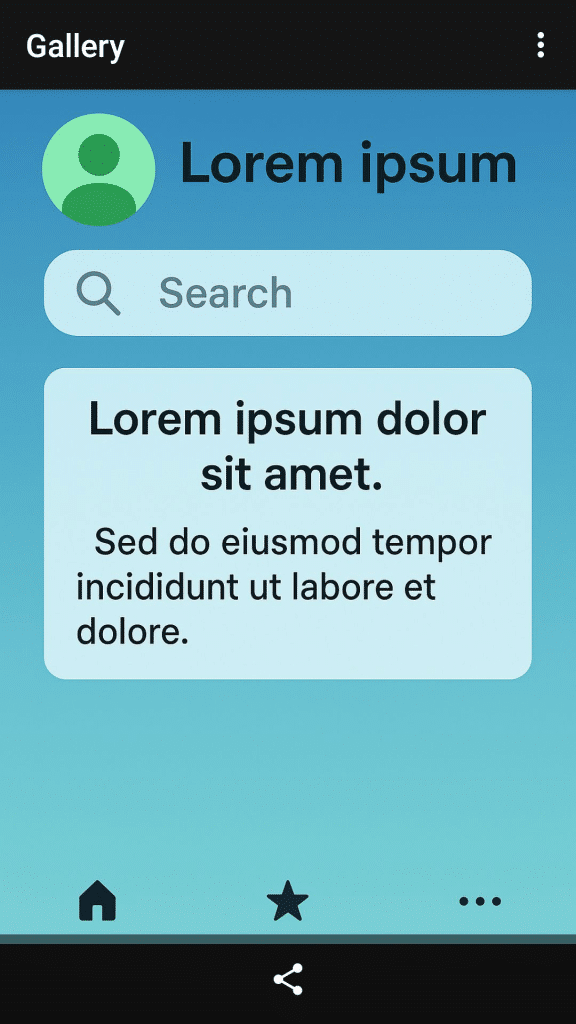
ShortCha의 광고 영상을 d.screenshot으로 캡처할 때, 왼쪽과 같이 화면 전체가 검은색으로 캡처되는 경우가 있습니다. 그 이유는 일반적으로 window에 secure flag가 있거나, 오버레이 화면에서 발생했습니다. 이렇게 검은색으로 캡처되면, YOLO에서 “X” 좌표를 찾지 못해 광고 SKIP이 Fail 하는 경우가 발생했습니다. 특히 최근에 더 자주 발생하고 있습니다. 사실 안드로이드를 커스텀으로 빌드해서 사용하기 때문에, 프레임워크에서 해결할수도 있었지만, 다른 환경에서도 쉽게 적용 할수 있는 방법을 찾기로 했습니다.

2. 해결 방법 – 우회 방법

스크린샷을 사용하는 것은 불가능하지만, 스크린 레코딩은 가능했습니다. Shortcha에서 테스트 할 때도 가능했습니다.

아래와 같이 구현했습니다.

a. 짧은 화면 녹화 -> 녹화된 영상에서 1frame 추출 -> 기존 screenshot 처럼 return

3. 결과 – 문제 해결

  • 영상의 품질은 조금 저하되지만, YOLO에서 인식에는 전혀 문제가 없이 버튼들이 인식됩니다.
  • 아래와 같이 육안으로 보면 둘 사이에 차이가 크지 않습니다.

d.screenshot
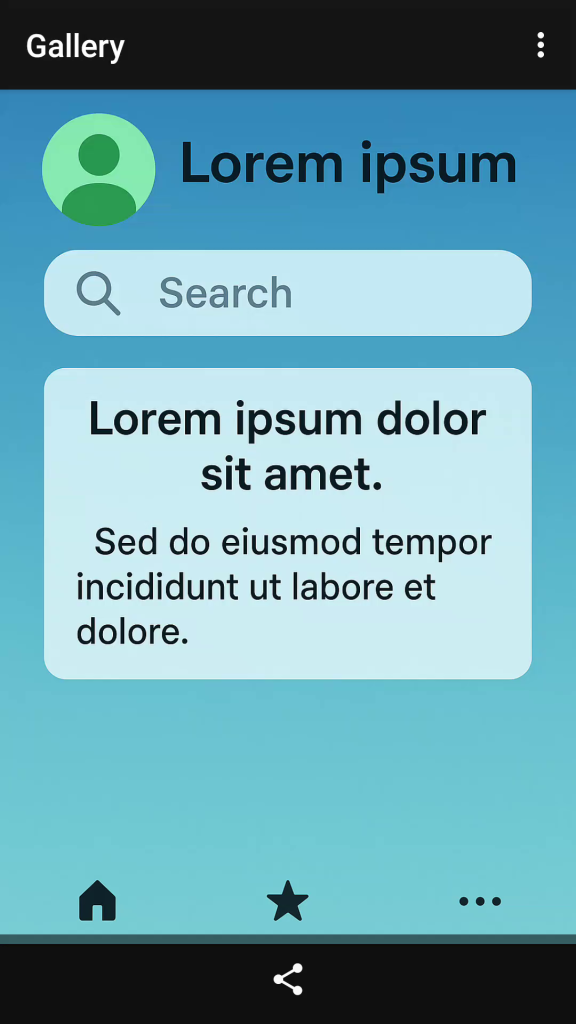
video frame capture

동영상 캡처 구현 – 다음은 Python 코드입니다. safe_screenshot은 기존의 스크린샷 코드이고, capture_android_frame()은 동영상 녹화 후 1프레임을 추출하는 함수입니다. (Linux 기준)

def safe_screenshot(d):
    """uiautomator2 → adb fallback screenshot"""
    try:
        img = d.screenshot(format="pillow")
        if not img.getbbox():
            raise ValueError("Black screen detected.")
        return img
    except Exception as e:
        print(f"⚠️ fallback to adb screencap: {e}")
        img = capture_android_frame()
        if img is not None:
            return img
        raise ValueError("Failed to capture screenshot.")

Code

import subprocess
import numpy as np
import cv2
import time
import signal
import sys
import threading
import os
from PIL import Image

def capture_android_frame(
    output_jpg="frame.jpg",
    tmp_video="/tmp/frame.mp4",
    width=1080,
    height=1920,
    fps=30,
    duration=2.0,
    record_format="mp4",
    cleanup=True,
):
    # Remove existing temporary file
    if os.path.exists(tmp_video):
        os.remove(tmp_video)

    print(f"[info] Starting scrcpy capture ({record_format})...")
    scrcpy = subprocess.Popen(
        [
            "scrcpy",
            "--no-display",
            "--record", tmp_video,
            "--record-format", record_format,
            "-m", str(height),
            "--max-fps", str(fps),
        ],
        stdout=subprocess.PIPE,
        stderr=subprocess.PIPE,
        bufsize=10**8,
        text=True,
    )

    # Thread to print scrcpy logs in real time
    def read_logs(pipe):
        for line in iter(pipe.readline, ''):
            sys.stdout.write(f"[scrcpy] {line}")
        pipe.close()

    log_thread = threading.Thread(target=read_logs, args=(scrcpy.stderr,))
    log_thread.daemon = True
    log_thread.start()

    # Wait for scrcpy to start and capture a few frames
    time.sleep(duration)

    # Gracefully stop scrcpy recording
    scrcpy.send_signal(signal.SIGINT)
    log_thread.join(timeout=1.0)
    scrcpy.wait()

    # Verify that the video was created
    if not os.path.exists(tmp_video) or os.path.getsize(tmp_video) < 5000:
        raise RuntimeError("⚠️ Recording failed — no video created")

    print(f"✅ Recorded temporary stream: {tmp_video} ({os.path.getsize(tmp_video)/1024:.1f} KB)")

    # Extract one frame using ffmpeg
    subprocess.run(
        [
            "ffmpeg",
            "-y",
            "-loglevel", "error",
            "-i", tmp_video,
            "-frames:v", "1",
            output_jpg,
        ],
        check=True,
    )

    # Load the frame using OpenCV
    frame = cv2.imread(output_jpg)
    if frame is None:
        raise RuntimeError("⚠️ Failed to decode frame")

    # Convert to Pillow Image before returning
    img = Image.fromarray(cv2.cvtColor(frame, cv2.COLOR_BGR2RGB))
    print(f"✅ Saved frame: {output_jpg} ({frame.shape[1]}x{frame.shape[0]})")

    # Optionally delete the temporary video
    if cleanup:
        os.remove(tmp_video)

    return img

if __name__ == "__main__":
    img = capture_android_frame(
        output_jpg="frame.jpg",
        tmp_video="/tmp/frame.mp4",
        duration=2.5,
        record_format="mp4",
    )
    print(f"[done] Captured image size: {img.size}")  # (width, height)
YOLO 모델 업데이트: 인식 실패 항목 추가 학습

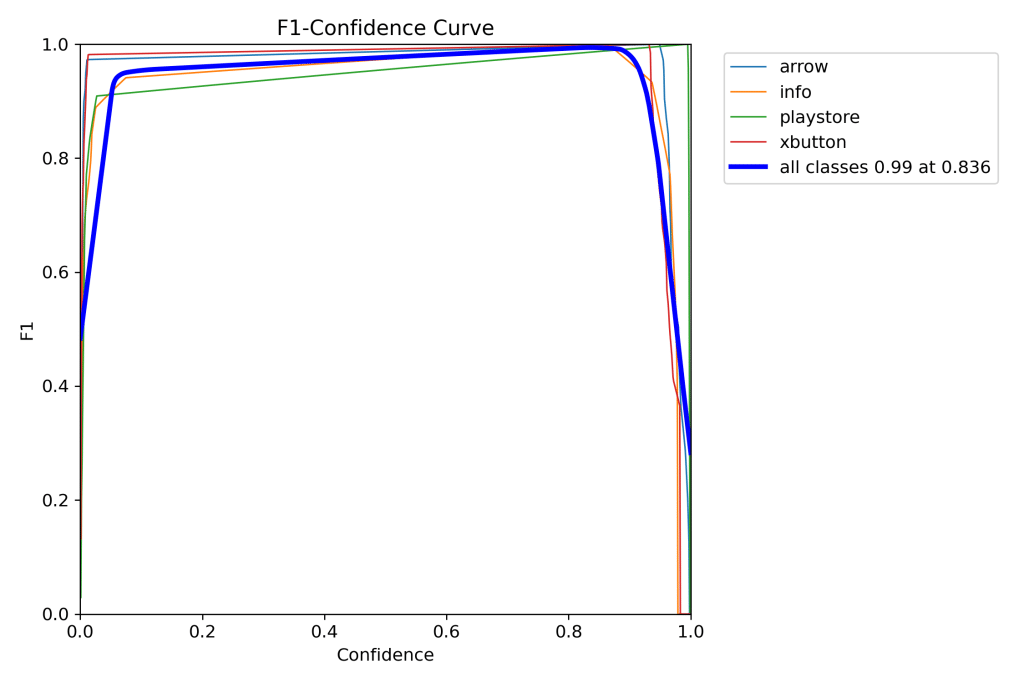
기존 모델에서 인식 실패 했던, X와 화실표에 대해서 재학습을 진행 했습니다. 재 학습후 지난 1주일동안 테스트 결과에서, 더이상 미인식 사례가 발생하지 않았습니다.

아래는 F1 그래프 입니다.

모델파일은 아래 링크에서 다운 받을수 있습니다.

이미지의 좌측/우측 상단 20% 영역만 학습에 사용했으므로, 추론시에도 동일한 영역만을 대상으로 적용해야 최적의 성능을 얻을수 있습니다.

SCREEN_CROP_RATIO = 0.20 
def _crop_square(img: Image.Image, where: str, ratio: float) -> Tuple[Image.Image, int, int]:
    """Return (crop, x_offset, y_offset) for 'rt' or 'lt' square crops."""
    w, h = img.size
    side = int(min(w, h) * ratio)
    if where == "rt":
        crop = img.crop((w - side, 0, w, side))
        return crop, w - side, 0
    elif where == "lt":
        crop = img.crop((0, 0, side, side))
        return crop, 0, 0
    else:
        raise ValueError("where must be 'rt' or 'lt'")

ShortCha 광고 자동화 봇 만들기: YOLO와 LLM으로..

최근 ShortCha 광고가 많이 보이길래 들어가 보았습니다.

1분 내외의 짧은 영상이 30~60편 정도 올라와 있더라고요. 짧게 시간 날 때 보기 딱 좋은 구성인데, 구독료가 엄청나더군요.

구독 가격을 보니, 한 주에 2만원…..

다른 OTT 서비스는 이미 월 1~2만원으로 구독하고 있어서, 이 가격까지 추가로 부담하긴 어렵더라구요. 그래서 어쩔 수 없이 광고 보고 무료로 사용하는 쪽을 선택했습니다.

ShortCha는 ‘젤리’라는 포인트로 에피소드를 볼 수 있는데, 광고를 보면 젤리를 모을 수 있어요. 그런데 여기서 문제가 있었습니다. 1분짜리 짧은 에피소드를 보려면 3~4분짜리 광고를 봐야 하는 거죠. (짧은 광고도 있지만, 계속 광고를 보다 보면 긴 광고가 보이는 시스템인것 같습니다. ) 이건 ROI(Return On Investment)가..

그래서 . “자동화 봇을 만들어볼까?”

처음에는 광고의 X버튼을 직접 클릭하려고 했어요. element로 되어 있으면 xpath로 찾을 수 있지만, 영상에 임베디드된 경우도 있더라고요. 그래서 다른 방법을 찾아야 했습니다. 화면을 캡처해서 X버튼을 찾는 방식을 고민하게 되었죠.

“누군가 이미 이런 AI 모델을 만들었을 텐데?” 하고 찾아봤지만, 아쉽게도 찾을 수 없었습니다. 그래서 직접 YOLO를 이용해서 구현하기로 했어요. 처음에는 class 분류 모델을 사용했는데, 닫기 버튼의 위치가 계속 변경되었습니다. 그래서 최종적으로 detection 모델로 변경했습니다.

MODEL_PATH = "best.pt"
model = YOLO(MODEL_PATH)

def yolo_classify(crop_img: Image.Image, side_offset: int) -> Optional[Tuple[str, float, Tuple[int, int, int, int], int]]:
    """Run YOLO on a PIL crop; return a list of (cls_name, conf, (x1,y1,x2,y2), side_offset) for all detections."""
    results = model.predict(source=crop_img, conf=PRED_CONF, save=False, verbose=False)
    detections = []
    for r in results:
        for box in r.boxes:
            cls_id = int(box.cls[0])
            conf = float(box.conf[0])
            x1, y1, x2, y2 = [int(v) for v in box.xyxy[0].tolist()]
            detections.append((model.names[cls_id], conf, (x1, y1, x2, y2), side_offset))
    return detections if detections else None

def _crop_square(img: Image.Image, where: str, ratio: float) -> Tuple[Image.Image, int, int]:
    """Return (crop, x_offset, y_offset) for 'rt' or 'lt' square crops."""
    w, h = img.size
    side = int(min(w, h) * ratio)
    if where == "rt":
        crop = img.crop((w - side, 0, w, side))
        return crop, w - side, 0
    elif where == "lt":
        crop = img.crop((0, 0, side, side))
        return crop, 0, 0
    else:
        raise ValueError("where must be 'rt' or 'lt'")

def detect_and_click_corner(d: u2.Device, where: str = "rt") -> Optional[Tuple[int, int, float]]:
    """
    Crop corner square (right-top or left-top), run YOLO, map to screen coords, click center.
    Returns (cx, cy, conf) or None if no detection.
    """
    img = d.screenshot(format="pillow")
    crop, x_off, y_off = _crop_square(img, where, SCREEN_CROP_RATIO)
    results = yolo_classify(crop, x_off)
    if not results:
        return None
    for class_name, conf, (x1, y1, x2, y2), x_offset in results:
        if class_name in ("xbutton", "arrow"):
            cx = int((x1 + x2) // 2) + x_offset
            cy = int((y1 + y2) // 2) + y_off
            d.click(cx, cy)
            return (class_name, cx, cy, conf)
    return None

화면 캡쳐 및 YOLO 모델 (best.pt는 YOLO weight 파일입니다)

이렇게 해서 매일 자동으로 젤리를 모으고, 보고 있는 시리즈는 미리 광고를 다 처리해두면 나중에 광고 없이 한번에 몰아볼 수 있게 했어요.

하지만 YOLO 모델이 항상 완벽한 건 아니었어요. 가끔 닫기 버튼을 찾지 못하는 경우가 있었습니다. 이럴 때를 대비해 fallback 전략을 추가했습니다. YOLO가 실패하면 LLM에게 화면 이미지를 보내서 버튼의 좌표를 불러오는 방식이죠. 이때 캡쳐한 이미지는 나중에 학습 데이터로 활용했습니다.

LLM Query 및 응답 – 예시

응답:
{
  "x": 1040,
  "y": 54,
  "reason": "There is an advertisement overlay on the screen. The 'X' close button is clearly visible at the top-right corner. Clicking at (1040, 54) will close the ad and allow the user to return to the app content."
}

코드

def ask_and_click_by_llm(d, api_url="http://192.168.10.100:4000/v1/chat/completions", api_key="sk-"):
    """
    1. Capture the current screen as an image and get current XML.
    2. Send the screenshot and XML to the LLM endpoint (chat completion).
    3. Receive the recommended click coordinates and reason.
    4. Click the received coordinates.
    5. Save the image, coordinates, and reason to files.
    """
    import datetime
    import json
    import os
    time.sleep(3)
    # 1. Capture screenshot
    img = d.screenshot(format="pillow")
    img_bytes = io.BytesIO()
    img.save(img_bytes, format="PNG")
    img_bytes.seek(0)
    img_b64 = base64.b64encode(img_bytes.read()).decode("utf-8")
    # 2. Get current XML dump as string
    xml_str = d.dump_hierarchy(compressed=True)
    # 3. Prepare OpenAI/LiteLLM chat completion payload
    payload = {
        "model": "azure/gpt-4.1",
        "messages": [
            {
                "role": "system",
                "content": (
                    "You are a UI automation assistant. "
                    "Given a screenshot and XML, suggest the best click position and explain why. "
                    "If the screen contains an advertisement overlay, prioritize clicking a '>>' or 'X' button to skip/close it. "
                    "Respond in JSON: {\"x\": int, \"y\": int, \"reason\": str}"
                )
            },
            {
                "role": "user",
                "content": [
                    {"type": "text", "text": "Here is the current screen and its XML. Where should I click and why?"},
                    {"type": "image_url", "image_url": f"data:image/png;base64,{img_b64}"},
                    {"type": "text", "text": xml_str}
                ]
            }
        ]
    }
    headers = {}
    if api_key:
        headers["Authorization"] = f"Bearer {api_key}"
    try:
        resp = requests.post(api_url, json=payload, headers=headers, timeout=60)
        resp.raise_for_status()
        # Try to extract JSON from LLM response
        content = resp.json()["choices"][0]["message"]["content"]
        # If LLM returns code block, extract JSON part
        if "```json" in content:
            content = content.split("```json")[1].split("```")[0].strip()
        result = json.loads(content)
        x, y = result.get("x"), result.get("y")
        reason = result.get("reason", "")
        print(f"LLM response: click at ({x},{y}), reason: {reason}")
        # 5. Save image, coordinates, and reason to files
        now = datetime.datetime.now().strftime("%Y%m%d_%H%M%S")
        save_dir = "llm_click_log"
        os.makedirs(save_dir, exist_ok=True)
        img_path = os.path.join(save_dir, f"screen_{now}.png")
        info_path = os.path.join(save_dir, f"info_{now}.json")
        xml_path =  os.path.join(save_dir, f"xml_{now}.xml")
        img.save(img_path)
        with open(info_path, "w", encoding="utf-8") as f:
            json.dump({"x": x, "y": y, "reason": reason}, f, ensure_ascii=False, indent=2)
        with open(xml_path, "w", encoding="utf-8") as f:
            f.write(xml_str)
        print(f"Saved screenshot to {img_path}")
        print(f"Saved click info to {info_path}")
        if x is not None and y is not None:
            d.click(int(x), int(y))
            print(f"Clicked at: ({x},{y})")
            return (x, y, reason)
        else:
            print("No coordinates received from LLM.")
            return None
    except Exception as e:
        print(f"LLM API request failed: {e}")
        return None

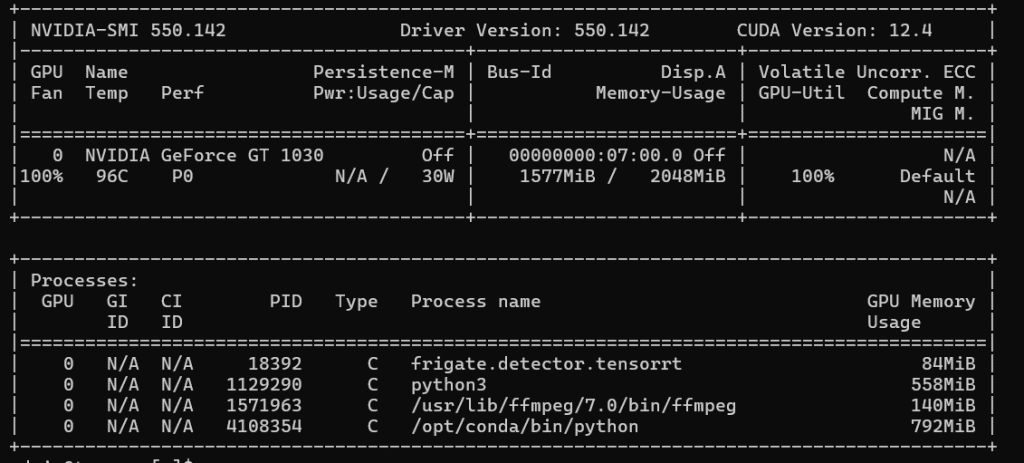
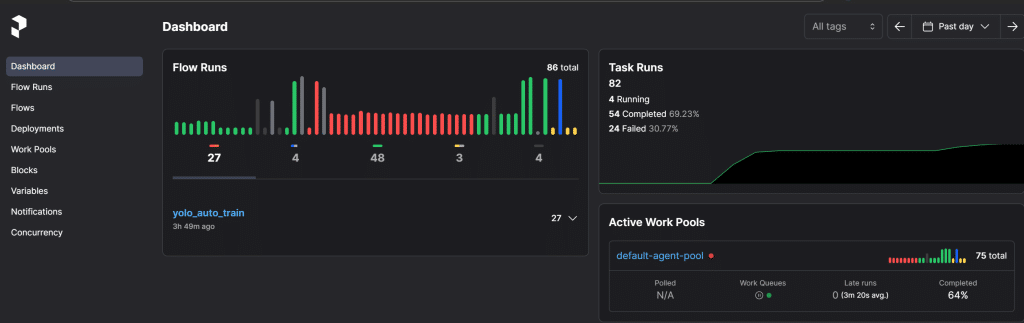
이 과정을 좀 더 체계적으로 관리하고 싶었어요. 그래서 Prefect를 설치해서 CI/CD 파이프라인을 구축했습니다. 단순한 이미지 학습인데도 CPU로는 60분이나 걸리더라고요. 그래서 NAS의 GPU를 활용하기로 했습니다. 고성능은 아니지만… 없는 것보다는 훨씬 나으니까요.

위 코드를 보면 알겠지만, 코드는 대부분 CoPilot 으로 작성했습니다. 실제로 직접 코딩하는 시간보다 모델을 학습 시키는 시간이 월씬 많이 걸렸죠.

봇과 MLOps의 전체 프로세스를 정리하면 다음과 같습니다:

  1. ShortCha에서 광고 보고 젤리 획득하기
  2. 보던 시리즈의 새 에피소드 미리 확보하기 (광고 보면서)
  3. YOLO 모델로 화면 캡처 후 닫기 버튼 탐지 및 자동 클릭
  4. YOLO가 버튼을 찾지 못하면 LLM에게 화면 이미지를 보내 좌표 확보
  5. LLM이 처리한 이미지와 데이터를 저장 (학습 데이터로 활용)
  6. 확보한 좌표를 클릭하여 미션 완료
  7. 저장된 이미지 확인 후 학습 데이터 보정 (여기는 사람이…)
  8. Prefect로 모델 학습 후 YOLO 모델 업데이트

이렇게 해서 YOLO와 LLM을 조합한 자동화 시스템을 만들었고, Prefect로 MLOps 파이프라인까지 구축하니 그럴듯하게 돌아가더라고요. 실패하면 LLM이 보완하고, 그 데이터로 다시 학습하는 구조입니다.

Prefect Dashboard

열심히 돌고 있는 NAS – GPU

CPU로 돌릴 때. ㅠㅠ

베트남 주식 수수료

2025년 베트남 주식 수수료 완전 비교 가이드 미국만 하다가 이번엔 중국과 베트남으로 확장을 했다. 베트남은 다른나라와 다르게 2가지 이슈가 있어서 기록으로 남긴다. 이 글은 2025년 11월 기준 으로 업데이트 했습니다. 📊 증권사별 수수료 비교표 증권사온라인 수수료오프라인 수수료최소수수료최소 거래단위공식 출처KB증권0.4%0.5%VND 500,000(₩28,000)100주KB증권미래에셋증권0.4%0.5%VND 700,000(₩39,000)100주미래에셋증권삼성증권0.4%0.5%VND 400,000(₩22,000)100주삼성증권나무증권(NH투자증권)0.4%0.5%VND 600,000(₩33,000)100주나무증권한국투자증권추후 공지 예정0.7%VND 800,000(₩45,000)100주한국투자증권유안타증권0.5%0.5%VND 700,000(₩39,000)100주유안타증권 💡 추가 사항 증권사 : 매도시 0.1% 증권거래세…

Read more

Migration Guide for Windows VM: From Electic to TrueNAS fangtooth 25.04

Recently, TrueNas Fangtooth 25.04 was release. The VM system has changed compared to the previous version. A new 'Instances' menu has been introduced for managing virtual machines. If you were using Windows 10 with a prrevious version of TrueNas, you will need to create a new VM. This document outlines the necesary steps. Import Zvols…

Read more

Virtual Print V2

안녕하세요. 기존에 virtual print는 인쇄 데이터를 그대로 PDF로 저장해 줍니다. 그래서, pdf를 보았을때, '글씨'데이터가 그대로 살아 있고, 이것 관련해서 '보안'상 이슈가 있을수 있습니다. 그래서 아래와 같이 추가 기능을 넣었습니다. Title 값 참고 그림 형식으로 추가 저장 아래와 같이 두가지 타입 _original 과 _raster 두개가 저장됩니다. original은 기존과 같은 형식이고 raster는 그림으로 변경 된것 입니다. pdf를…

Read more

증권사별 7월 이벤트

현재 KB증권을 이용중이다.. 나는 혜택이 있지만 HTS (PC거래)시만 적용이 되고,아이들 계좌는 일반 수수료 (0.25%) 이다. 최근에 KB에서 여러 이벤트도 있길래 좀 어떻게 될꺼가 있나 해서 지점과도 통화 했지만 그냥 증권사를 옮기라고 한다. 그래서 몇 곳을 알아 보고 결정을 했다. 중심으로 둔거는 아이들 계좌이다. 지금 현금 2~3만원 주는 곳은 많은데, '평생' 수수료를 주는 곳으로 택했다. 그래서…

Read more

증명서 pdf로 출력 하기 – 가상 프린터 virtual printer(update 26.05.04)

물리 프린터로 출력을 해야만 하는 증명서 들이 많습니다. http://vp.flywithu.com:3000 여기서 출력물을 직접 관리하고, 즉시 삭제 가능 합니다. ipv4가 안정적인 환경(집 인터넷). 핸드폰 핫스팟은 ip가 계속 변경 됩니다. 인터넷 증명발급 테스트 (cak.or.kr) 이렇게 일반적으로 지원 불가 프린터라고 나옵니다. 이 해결방법으로 '모두의 프린터'같은 것이 있습니다. 그러나 설치도 해야하고.. 그래서 가상 프린터를 만들어서 이러한 문서들을 pdf로 인쇄 해보려고…

Read more

홈페이지 인덱스는 함부로 바꾸는게 아닙니다. 방문자수 복구가 안되는구나.. ㅠㅠ

같은 기간을 비교 한건데, 본 홈페이지 방문자수가 -86% 입니다. 이때 무슨 일이 있었냐 하면, 지금은 홈페이지의 글들이 아래처럼 숫자로 연결되어 있습니다. https://flywithu.com/archives/7830 이 전에는 archives/홈페이지 이런식으로 글의 주소가 제목이었습니다. 제목으로 google등의 search engine 과 연결되어 있었고, 많은 방문이 이를 통해 이루어 졌는데, 인덱스를 숫자로 바꾸면서 와장창 링크가 다 깨지면서 방문자도 급감 했습니다. 기존 링크가 자동연결되게…

Read more

Azure AI computer Vision in Golang: ChatGPT Intergration Guide

English follows Korean 얼마전에 사진 정리 도구를 Piwigo에서 PhotoPrism으로 변경했습니다. Piwigo는 매우 좋은 어플리케이션이지만, PhotoPrism의 현대적인 느낌과 AI를 이용한 사진 분류기능이 매력적입니다. PhotoPrism은 Golang으로 개발되어 있으며, REST API를 통해 다양한 프로그래밍 언어로 활용할 수 있습니다. (Browse Your Life in Pictures – PhotoPrism). 그러나 여러 예시가 Golang이라 그것을 활용해 보았습니다. Golang은 처음이로 ChatGPT를 이용해서 Library와 Sample을…

Read more